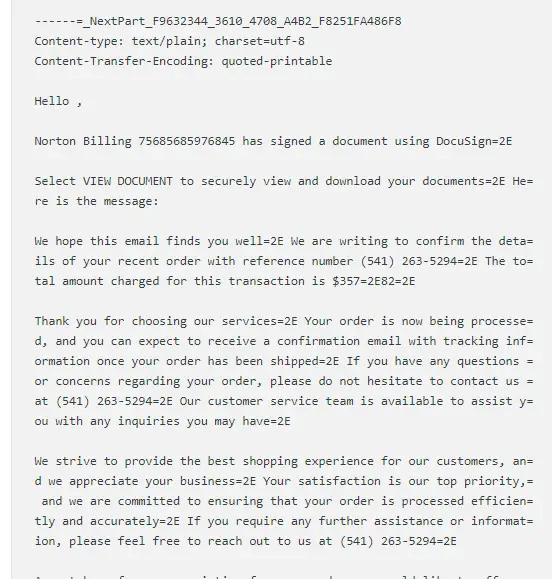
You are checking your inbox when an email arrives with the subject line “Unusual sign-in activity.” It says someone may have accessed your Microsoft account from a new device or location, and it urges you to review the activity before your account is compromised. If you use Outlook, Hotmail, OneDrive, Skype, or a Windows PC linked to a Microsoft account, receiving this kind of message can be unsettling. Your first instinct may be to click the security link and make sure everything is fine, but that is exactly the reaction some scammers are counting on.
The tricky part is that the Microsoft Account Team is real, and Microsoft genuinely sends security alerts when it detects unusual sign-in attempts. However, cybercriminals have become increasingly sophisticated at imitating these messages, and a security report published in May 2026 revealed an even more troubling development: scammers were abusing a legitimate Microsoft notification system to send deceptive emails containing suspicious links. This means that relying on the sender’s name alone is no longer enough to decide whether an email is safe.
In this Microsoft Account Team scam email review, we explain how to recognise fake Microsoft security alerts, what to do when you receive an unusual sign-in notification, and how to protect your account without accidentally giving criminals access to it.
What Is the Microsoft Account Team Email?
Microsoft Account Team emails are genuine notifications used to communicate important information about your Microsoft account. These messages may contain security codes, password-change notifications, or alerts about sign-in attempts that Microsoft considers unusual. For example, you might receive a notification after travelling to another country, signing in from a new device, or using an application that connects to your Microsoft account.
Microsoft identifies [email protected] as a legitimate sender for unusual sign-in alerts. Its official guidance explains how to check the sender address and inspect the message headers when you need to establish whether a notification is genuine.
The difficulty is that scammers know people are accustomed to seeing these messages. They can copy Microsoft’s logo, reproduce the wording of a genuine security alert, and create a convincing email that claims your account is at risk. Some messages threaten account suspension, while others warn about an unfamiliar login or tell you that an urgent security review is required.
Their goal is often to get you to visit a fake login page and enter your Microsoft email address and password. Once criminals obtain those details, they may attempt to access your inbox, personal files, saved information, and other services connected to the account.
Is the Microsoft Account Team Scam Email Real or Fake?
The answer depends on the particular message you received. A genuine Microsoft Account Team security alert is not a scam simply because it reports an unusual sign-in. Equally, an email that displays Microsoft’s name or logo should not automatically be trusted.
Microsoft’s official guidance says its legitimate account security notifications come from the @accountprotection.microsoft.com domain. However, there is an important complication: a May 2026 investigation by TechCrunch reported that scammers had been abusing a Microsoft notification system to send spam and phishing links through an address normally associated with legitimate account alerts. Microsoft said it was investigating the reports and taking steps to strengthen its detection and blocking systems.
That development makes it especially important to examine what the email is asking you to do. Even when a message appears to come from a legitimate Microsoft-related address, unexpected links, suspicious payment requests, strange web addresses, or messages unrelated to your account activity should make you cautious.
A message claiming that you have an unusual sign-in should prompt you to check your account independently, rather than follow instructions supplied by the email. You do not need to determine whether every technical detail of the message is genuine before taking that safer route.
How to Tell a Fake Microsoft Security Email From a Genuine One
1. Check the complete sender address. Do not rely on the display name “Microsoft Account Team,” because display names can be copied. Expand the sender details and inspect the actual email address. Microsoft identifies [email protected] as a legitimate security notification address. Misspellings, unrelated domains, and lookalike addresses are reasons for suspicion, although the recent abuse of Microsoft’s notification systems means that a familiar-looking address should not be your only test.
2. Look closely at the links. A fake Microsoft security email may contain a button labelled “Review Recent Activity,” “Secure Account,” or “Verify Identity.” The wording can look perfectly reasonable while the destination leads to a fraudulent website. Rather than clicking, open a new browser window and enter Microsoft’s official account address yourself: https://account.microsoft.com/security.
3. Be wary of pressure tactics. Scammers often claim that your account will be permanently locked, your files deleted, or your access restricted unless you act immediately. A security alert can legitimately ask you to review unusual activity, but you should not let a threatening subject line rush you into entering your password or sharing a verification code.
4. Check whether the alert matches your own activity. Think about whether you recently travelled, signed in from another device, changed your password, or connected a new application. Unusual sign-in alerts can be triggered by legitimate activity, so receiving one does not necessarily mean your account has been hacked. You can confirm what happened by checking Microsoft’s Recent Activity page directly.
5. Treat unexpected verification codes carefully. If you receive a Microsoft security code you did not request, do not share it with anyone. It may mean someone is trying to sign in, although an accidental entry of the wrong email address or phone number is also possible. A stranger who contacts you and asks for that code should not be trusted.
The New Microsoft Email Scam That Can Look Genuine
One reason this scam deserves attention is that email authentication and sender verification do not always tell the whole story. Many people have been taught to check whether a message comes from an official domain, but attackers can sometimes abuse legitimate services to send messages that appear to originate from a trusted system.
In May 2026, TechCrunch reported that scammers had been using Microsoft’s account notification infrastructure to send deceptive emails containing links to suspicious websites. Some messages imitated account security warnings, while others claimed that a private message was waiting for the recipient. The report described abuse involving [email protected], an address associated with Microsoft notifications. Microsoft subsequently said it was investigating the phishing reports and working to strengthen its protections.
This is why a simple rule such as “the sender looks official, so the email must be safe” can fail. A legitimate service may be misused, and a genuine security notification may be imitated by an entirely different sender. What matters is the complete context of the message, the destination of its links, and whether the alleged problem is visible when you check your account through Microsoft’s official website.
There is also a related type of attack involving device-code authentication. A scammer may persuade someone to enter a code supplied by the attacker on a genuine Microsoft sign-in page. The page itself may be legitimate, but entering the code can authorise the attacker’s device or session. Never enter a device code simply because an unsolicited email or caller tells you to do so.
What to Do If You Receive a Microsoft Account Team Scam Email
If you receive an unexpected message about unusual sign-in activity, leave the email alone for the moment and open Microsoft’s security page directly at https://account.microsoft.com/security. Sign in through the genuine website, open the recent activity information, and check whether Microsoft has recorded a sign-in attempt you do not recognise.
Microsoft’s official instructions explain that you can expand an unfamiliar event and report that it was not you. If you find activity that suggests someone accessed your account, follow Microsoft’s instructions to secure the account and change your password.
If the account appears secure and you cannot find evidence of the alleged problem, do not follow the email’s links simply to be safe. You can report the message as phishing through your email provider and delete it after retaining any information you need for a report.
If you entered your password on a suspicious website, change it immediately through Microsoft’s official website. If you reused that password elsewhere, change it on those accounts as well. Review your recovery email addresses, phone numbers, and other sign-in methods for changes you did not make, and enable two-step verification if it is not already active.
If you approved an unexpected sign-in or entered a device code at someone’s request, treat the situation seriously. Review your account activity, secure the account, and follow Microsoft’s recovery guidance if you can no longer sign in.
How to Check Microsoft’s Recent Activity Page
The Recent Activity page is one of the most useful places to investigate an unusual sign-in email. You can access it by typing this address into your browser: https://account.live.com/Activity.
Once you have signed in, review the dates, locations, devices, and types of activity listed. Location information may not always be exact, since internet service providers and network routing can affect how a sign-in location appears. A location you do not recognise is therefore not conclusive proof of an attack, but an unfamiliar successful sign-in deserves closer attention.
If an entry clearly does not belong to you, follow Microsoft’s instructions to report it and secure your account. If you cannot access your account because someone has changed the password or recovery information, use Microsoft’s official account recovery process rather than a phone number or recovery link supplied in a suspicious email.
Can You Trust Emails From Microsoft Account Team?
Microsoft Account Team emails can be genuine, but the name alone is not enough to establish authenticity. Microsoft does send real unusual sign-in alerts, and its official support documentation identifies the account protection domain used for these notifications. At the same time, the reported abuse of Microsoft’s notification infrastructure demonstrates why users should be cautious even when an email appears to come from a familiar source.
My recommendation is to make checking the account directly your normal response to unexpected security alerts. This approach works whether the message is a basic phishing attempt, a spoofed email, or a deceptive message sent through an abused notification service. You do not have to trust the email to find out whether your account needs attention.
Conclusion
The Microsoft Account Team scam email is not one single scam with one sender or one standard message. It is a broader form of phishing that exploits people’s concern about losing access to their Microsoft accounts. Some emails imitate legitimate security alerts, while reported campaigns have also abused Microsoft’s own notification infrastructure to make deceptive messages appear more credible.
If you receive an email about unusual sign-in activity, do not assume that your account has been hacked, but do not dismiss the message without checking either. Visit Microsoft’s official security page, review Recent Activity, and take action only after verifying what happened. Never share passwords, verification codes, or device-authentication codes with someone who contacts you unexpectedly.
The safest approach is simple: verify the activity through your account, not through the email. That one habit can help protect your Outlook inbox, OneDrive files, and other services connected to your Microsoft account, even when a phishing message looks remarkably convincing.
Check out The Docusign Email Scam, I talked about earlier.